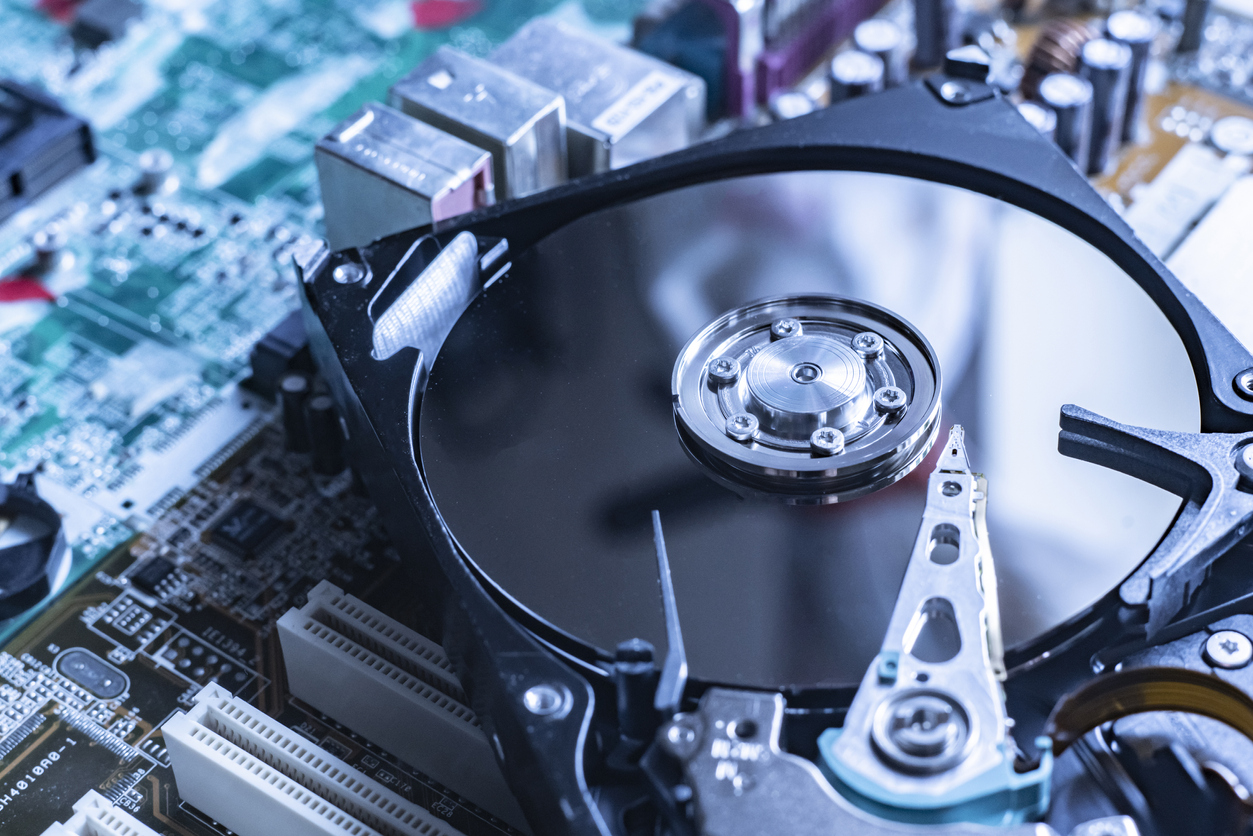
Good hard drive maintenance won’t make a drive last forever, but it meaningfully reduces the odds of a sudden failure — and more importantly, makes sure a failure never costs you your data. Here’s what actually helps, how to catch warning signs early, and how to build a backup strategy that means a dead drive is an inconvenience, not a disaster.
How We Researched This Guide
Backup service pricing below reflects each provider’s current published plans as of mid-2026 (Apple, Google, and Backblaze’s own pricing pages). S.M.A.R.T. attribute guidance follows the standard monitoring fields most drive diagnostic tools (CrystalDiskInfo, smartctl) report on.
Dos: What Actually Extends Drive Life
- Back up regularly and automatically. Manual backups get skipped. Set up automatic backups so it happens without you remembering.
- Keep the drive cool. Heat is one of the biggest contributors to premature HDD failure — make sure case fans and airflow are working, especially in a laptop with dust-clogged vents.
- Handle drives carefully. Avoid drops, bumps, and movement while an HDD is actively reading/writing — the read/write head is extremely close to the platter surface.
- Let drives spin down properly. Use your OS’s proper shutdown/eject process rather than cutting power abruptly.
- Monitor S.M.A.R.T. status. Free tools like CrystalDiskInfo (Windows) or
smartctl(Mac/Linux) surface early warning signs before a drive fails outright.
Don’ts: What Shortens Drive Life
- Don’t ignore unusual noises. Clicking, grinding, or repetitive beeping sounds are a strong sign of impending mechanical failure — back up immediately if you hear these.
- Don’t run drives at near-full capacity long-term. Performance degrades and fragmentation risk rises when a drive stays consistently above roughly 85–90% full.
- Don’t skip antivirus/anti-malware protection. Ransomware and malware remain a leading cause of “sudden” data loss that has nothing to do with hardware failure.
- Don’t defragment an SSD. Defragmentation helps HDDs but provides no benefit to SSDs and adds unnecessary write cycles — modern operating systems already know not to defrag SSDs by default.
S.M.A.R.T. Warning Signs to Watch
| S.M.A.R.T. attribute | What it means | Action if it’s flagged |
|---|---|---|
| Reallocated Sectors Count | Drive has found and remapped bad sectors | Back up now; monitor for continued increases |
| Pending Sector Count | Sectors are unstable and awaiting remapping | Back up immediately; failure risk is elevated |
| Uncorrectable Sector Count | Data in these sectors could not be recovered | Treat as an active failure warning |
| Spin Retry Count | Drive struggled to spin up properly | Common early sign of mechanical wear |
| Temperature | Drive is running hotter than normal | Check airflow/cooling; sustained heat shortens lifespan |
Build a Real Backup Strategy: The 3-2-1 Rule
Keep 3 total copies of important data, on 2 different media types, with 1 copy stored off-site. In practice: your working files, a local external drive backup, and a cloud backup covers all three.
| Service | Entry tier | Mid tier | Notes |
|---|---|---|---|
| Backblaze | — | Unlimited storage, ~$9/mo (or ~$99/yr) | Unlimited backup of one computer’s drives; simplest “set and forget” option |
| iCloud+ | 50GB — $0.99/mo | 2TB — $9.99/mo | Tight integration if you’re already on Apple devices |
| Google One | 100GB — ~$1.67/mo (annual) | 2TB — $9.99/mo | Also covers Gmail and Google Photos storage |
| Microsoft OneDrive | 100GB — ~$1.67/mo | 1TB (with Microsoft 365) — ~$8.33/mo | Bundled with Office apps at the 1TB tier |
For most people, an external drive for local backups plus one cloud service for off-site coverage is enough. If you’re managing a large media library, Backblaze’s unlimited-storage plan tends to be the most cost-effective option since it isn’t capacity-gated.
FAQs
How often should I back up my data?
Set backups to run automatically — daily for actively-changing files like documents and projects, and at least weekly for less frequently updated data like photo libraries.
Do SSDs need the same maintenance as HDDs?
No — SSDs have no moving parts, so physical handling and cooling matter less, and they should never be defragmented. They still benefit from regular backups and S.M.A.R.T. monitoring, since flash memory does wear out over many write cycles.
What’s the single most important maintenance habit?
Automatic, regular backups. Every other tip on this list reduces the chance of failure; only a backup guarantees that a failure — whenever it happens — doesn’t cost you your data.
